Welcome Screen
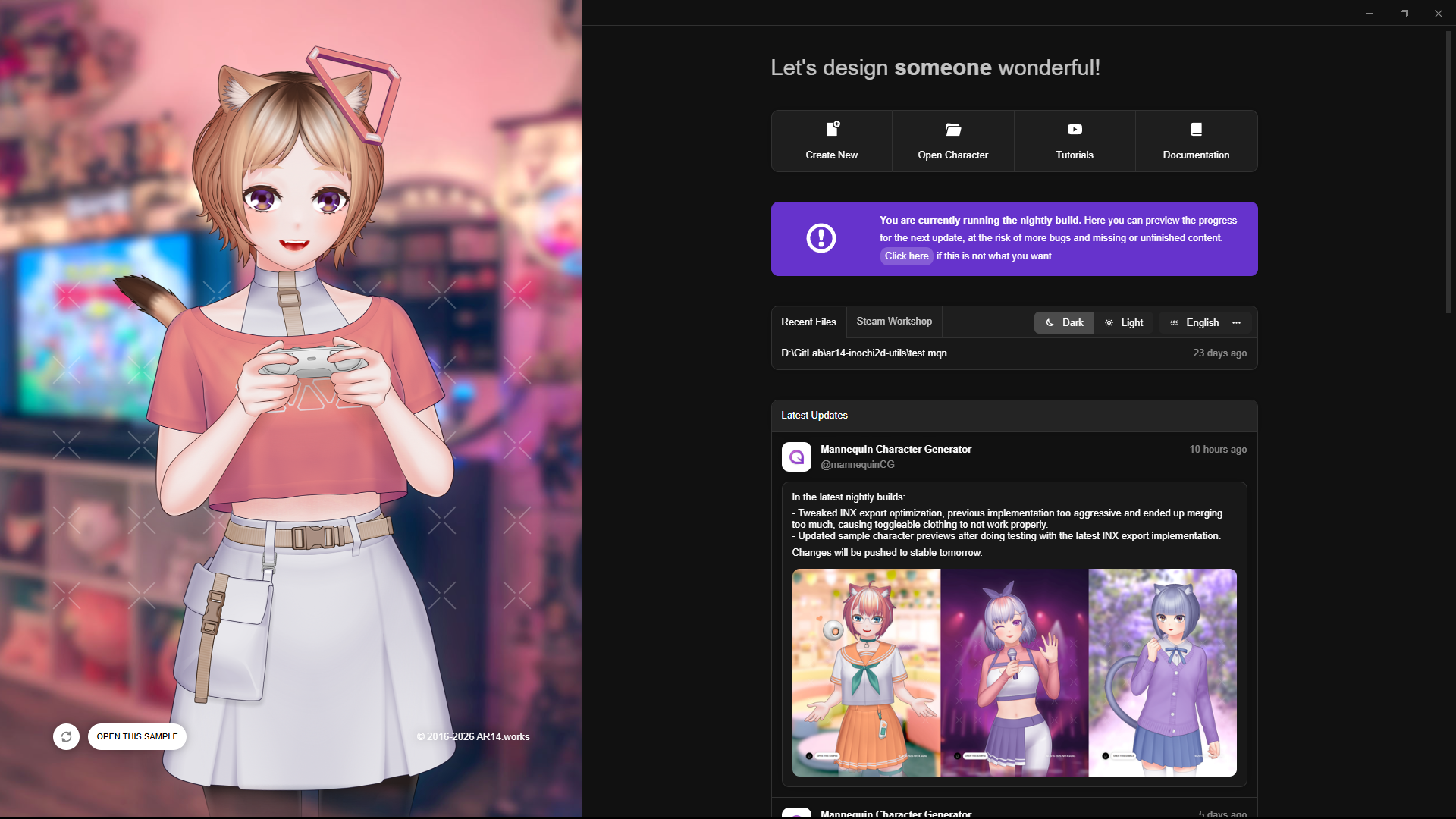
This is the first screen that you'll see after opening Mannequin Character Generator. From here, you can:
- Create a new character.
- Open existing character file.
- Browse tutorial videos on our YouTube channel.
- Read the online documentation (this website).
- Change UI theme ( dark or light).
- Change UI language.
- Check the latest news (taken from our Mastodon).
- Open sample character showcased at the left side.
- Reroll showcased sample character.
Creating A New Character
After clicking the Create New button, this dialog window will show up:
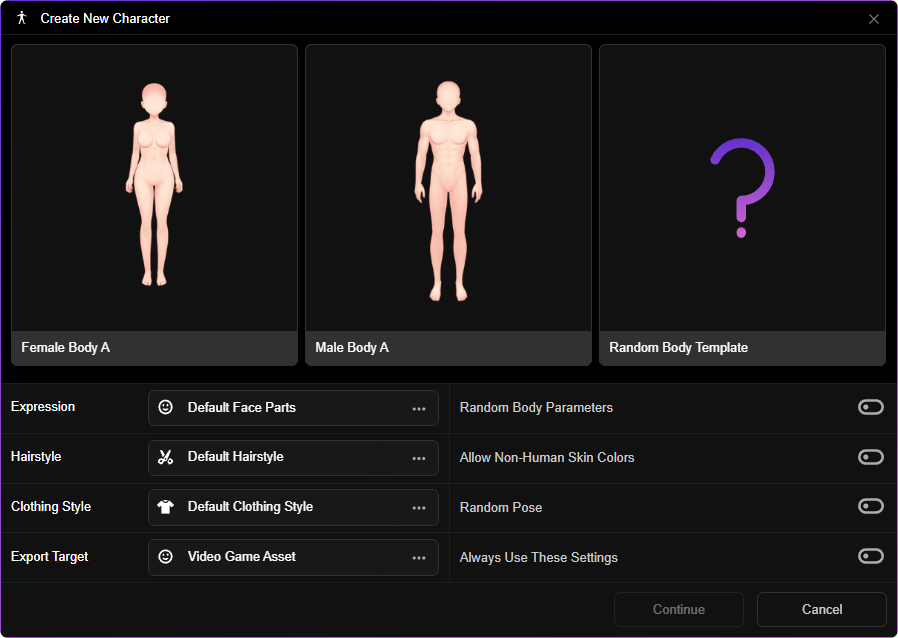
In this dialog, you can choose between which body template to be used, or leave it random. You can also set additional options regarding Expressions, Hairstyles and Clothing Styles. Clicking the three dot icon at each section will give you the option to use default settings, leave it random, or use none.
You can enable Random Body Parameters to randomize body part sizes and skin color. Enabling Allow Non-Human Skin Colors will let the randomizer choose any color for the skin (like purple, blue or green).
You can choose your export target between Video Game Asset or VTuber Model. Choosing VTuber Model will limit your template selection to Inochi2D-compatible templates, ensuring your exported INX file will be fully rigged.
Finally, you can enable Always Use These Settings to make Mannequin remember your current configuration for new characters. When this option is chosen, the new file dialog will be skipped in your subsequent sessions.